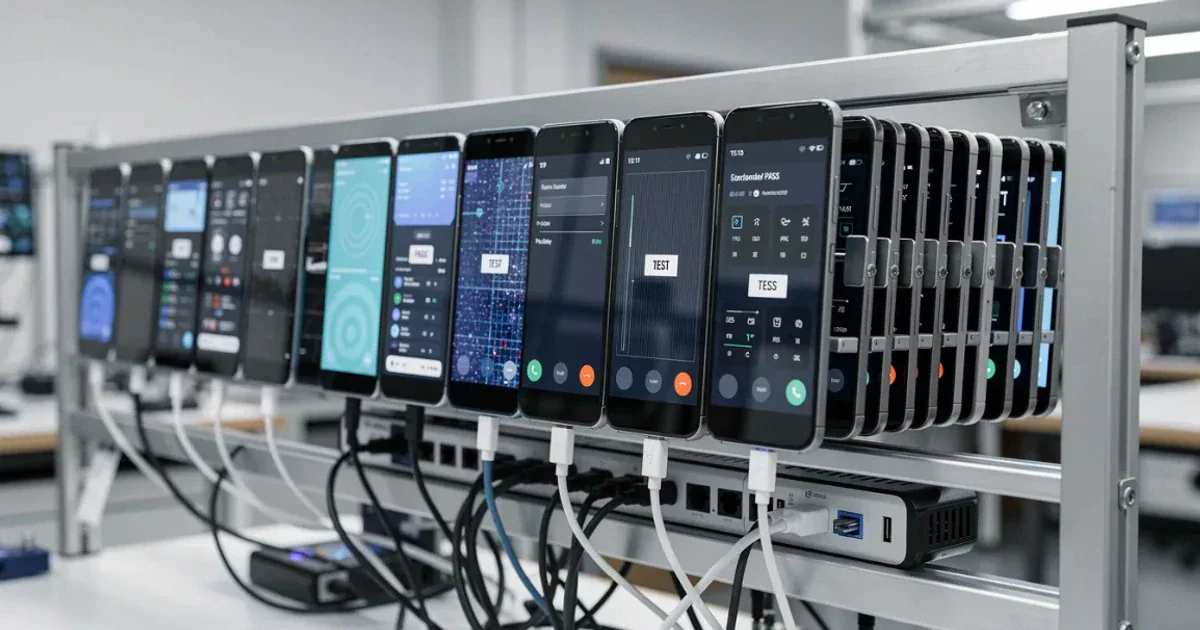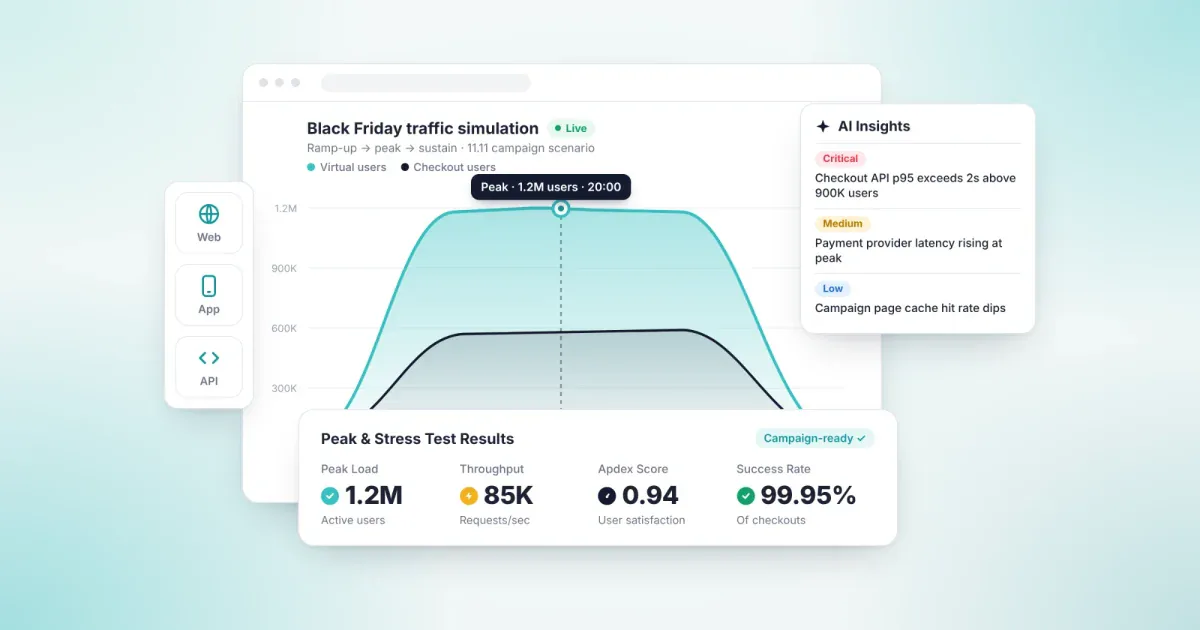
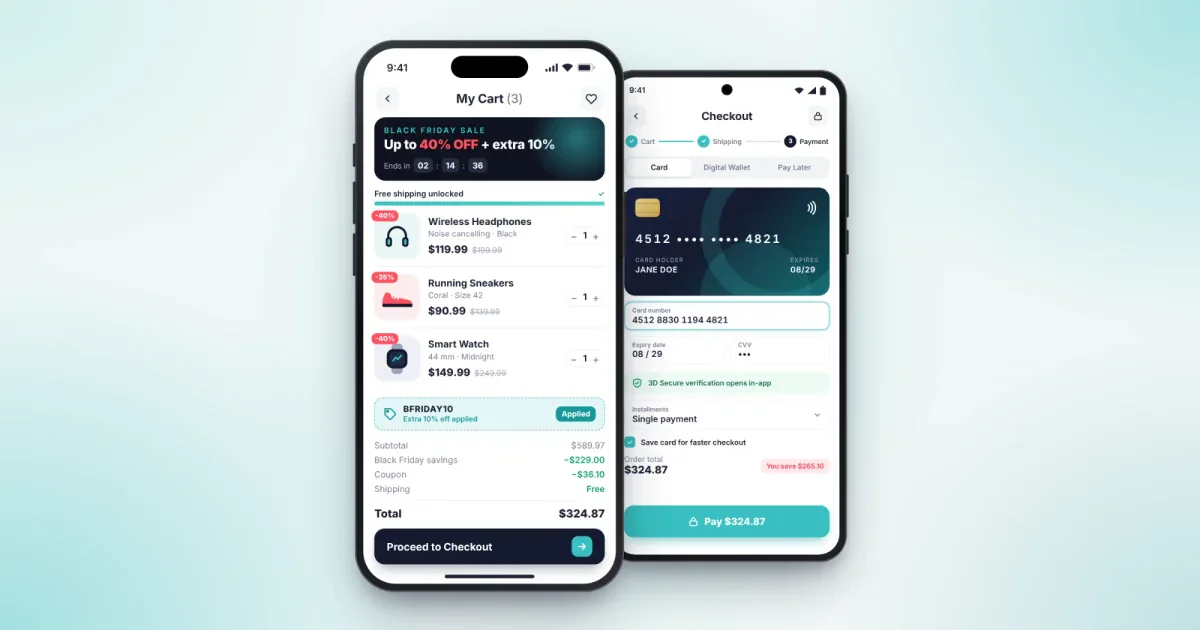
Pre-campaign mobile app testing is the process of verifying, before Singles' Day and Black Friday, that campaign screens work correctly across different iOS and Android devices. Even if your infrastructure handles the traffic, the campaign can still break on the customer's phone. That is why campaign flows should be tested on real devices weeks before launch.
Mobile shopping by the numbers
During holiday campaigns, most online shopping now happens on mobile. A single bug in your mobile app can hit your biggest sales channel.
| Indicator | Value | Source |
|---|---|---|
| US mobile holiday spending (2025) | $145.2 billion, more than half of all online holiday spending | Adobe Analytics |
| Mobile share on Thanksgiving Day (2025) | 61.6% of online sales | Adobe Analytics |
| Türkiye ecommerce transactions (2025) | ~6 billion | Turkish Ministry of Trade (ETBİS) |
| Impact of page speed on conversion | A B2C ecommerce site that loads in 1 second converts 2.5x higher than one that loads in 5 seconds | Portent (2022) |
Four risks that break mobile apps during campaigns
Campaign screens usually change in the final weeks and go live without being tested on every device.
| Risk | What happens on campaign day | Business impact |
|---|---|---|
| Device fragmentation | The campaign opens on many old and new iOS and Android models. | Screens that break on specific devices reach production unnoticed. |
| QR and camera flows | QR codes in stores or on packaging lead into the campaign. | A camera permission or scanning error locks customers out of the campaign. |
| Location-based offers | Offers vary by city or store. | The wrong offer appears in the wrong location. |
| Interactive campaign mechanics | Shake-to-win or spin-the-wheel experiences go live. | Bugs invisible in desk testing surface at launch. |
Six of the most common campaign screen bugs
What these bugs have in common is that they rarely show up on a developer's own phone. Each one appears with a different screen size, OS version or device setting.
| Bug | Where it shows up | How to catch it |
|---|---|---|
| Campaign banner covers the CTA button | Small screens and devices with large text settings | Test across screen sizes and accessibility settings |
| Coupon field hidden behind the keyboard | Some Android keyboards and small screens | Complete coupon entry end to end on a real device |
| Push notification opens the wrong screen | When the app is closed or in the background | Test notifications and deep links in every app state |
| QR flow freezes when camera permission is denied | Users who deny permission the first time | Test granting and denying permission separately |
| Payment authentication screen fails to open in-app | Checkout flows that use an in-app browser | Complete checkout end to end on a real device |
| App crashes on an older OS version | The oldest supported iOS and Android versions | Add the oldest supported version to your device matrix |
Emulator or real device?
Emulators are great for fast, scalable testing, but they do not always reproduce device-specific behavior. Before a campaign, use both.
| Criterion | Emulator | Real device |
|---|---|---|
| Speed and scale | Many configurations spin up quickly. | Limited by the size of the device pool. |
| Camera and QR | No real camera. | QR codes are scanned with the device's own camera. |
| Display and performance | Does not fully reflect model-specific differences. | Shows exactly what the customer sees, at real performance. |
| Best for | Early development and broad coverage | Final validation before the campaign |
How to choose a device matrix
You cannot test on every device, but a well-chosen device matrix covers most of your users with a small number of devices.
- Start with analytics. List the device models and OS versions that make up most of your traffic.
- Add the edges. Include the oldest supported iOS and Android versions, plus the smallest and largest screens.
- Don't forget low-end devices. Campaign animations and images can slow down on older, lower-spec devices.
- Add the latest iOS and Android releases. OS updates shipped before November can cause unexpected behavior on campaign screens.
- Map the matrix to campaign flows. Test QR and location flows on your most-used devices, and run visual checks across the full matrix.
Pre-campaign mobile testing checklist
- Campaign screens tested on real devices across every iOS and Android version in the matrix.
- Campaign banners and buttons do not overlap on any screen size.
- QR campaigns validated with the device camera, including permission granted and denied.
- Location-based offers checked for different locations.
- Shake-to-win and similar mechanics tested on the latest build.
- Links opened from push notifications and SMS land on the right campaign screen.
- Cart, coupon and checkout flows work end to end on mobile.
- Campaign release submitted in time to allow for app store review.
- Bugs reported to the right team with screenshots and video recordings.
- Mobile regression test completed before the campaign release is frozen.
A ready mobile app does not mean your servers will handle campaign traffic. We cover how to plan peak and stress testing week by week in Black Friday Load Testing: How to Prepare Your Infrastructure for Peak Traffic.
Testing campaign flows on real devices with MobileHub
MobileHub · Mobile Testing and Automation on Real Devices · iOS and Android devices
With MobileHub, you test campaign flows on real iOS and Android devices as well as emulators:
- QR campaigns: QR codes are scanned with the tested device's own camera.
- Location-based offers: Trigger a location from the session tools by picking it on a map, entering coordinates or choosing a preset location.
- Shake-to-win mechanics: A shake command is sent to the device from the session tools, and the flow is tested on a real device.
- Manual testing: Upload your app, use the device on screen from your browser and rotate the screen.
- Automation: Run your own Appium automation and codeless scenarios built in AutoRunner on the same devices.
- Evidence: Capture screenshots and video during the session and keep them with logs and PDF reports; Jira or Azure DevOps integration is set up if your team wants it.
- Reservations: Book devices in advance for campaign week, in slots from 15 minutes to 4 hours.
MobileHub runs in the cloud or in your own environment, and you can add your own devices to the shared device pool. Distributed teams can then share the same device pool during campaign week.
Frequently asked questions
Why should mobile campaign flows be tested on real devices?
Flows such as QR scanning use the device's own camera, and layout and performance vary by model and OS version. Real-device testing lets you see those differences before campaign day.
How many devices should we test on?
Start with the devices and OS versions your users rely on most, then complete the matrix with the oldest supported version and the smallest and largest screens.
How far ahead should mobile testing happen?
Run the first round at least three weeks before the campaign. Because campaign screens change in the final weeks, plan another regression round before the release is frozen.
How does app store review affect the campaign timeline?
Campaign releases go through App Store and Google Play review. Apple says it reviews at least 50% of submissions within 24 hours and 90% within 48 hours. Google Play says some apps may face extended reviews of up to seven days, or longer in exceptional cases. Submit early with that in mind and rerun your tests on the approved build.
How do you test shake-to-win mechanics?
In MobileHub, a shake command is sent to the device from the session tools, and the campaign flow is tested end to end on a real device.
Validate your campaign flows on your customers' devices.
Let's review your campaign scenarios together with MobileHub. Contact us
Sources: Adobe, 2025 Holiday Shopping Recap and Jan 7, 2026 press release · Turkish Ministry of Trade, E-Commerce in Türkiye Report 2025 · Portent, Site Speed is (Still) Impacting Your Conversion Rate (2022)